Решил в отпуске изучить разработку под Vive в Unity3D. Погуглил парочку примеров и начал пробывать, но почему то не работало. Начав подробней разбираться и обнаружил, что Valve выкатили недавно обновление плагина для Unity3D — новая, сильно переделанная версия. В ней появилось парочка принципиальных новшеств, которые сделали старые tutorial’ы не актуальными. Решил написать новый
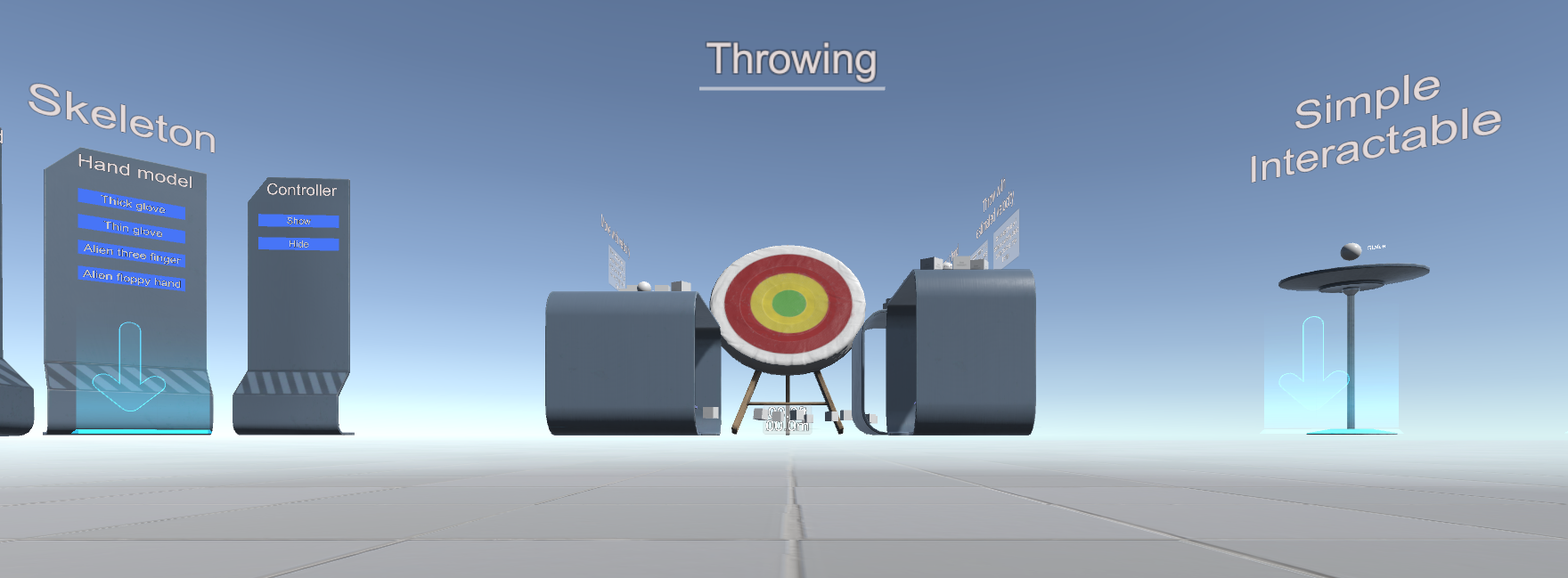
Нам понадобится Unity >= 5.4.0 и новый плагин SteamVR Plugin (GitHub)
В самом плагине есть три полезных для ознакомления pdf’ки
\Assets\SteamVR\SteamVR Unity Plugin.pdf
\Assets\SteamVR\SteamVR Unity Plugin — Input System.pdf
\Assets\SteamVR\InteractionSystem\InteractionSystem.pdf
И два примера:
\Assets\SteamVR\Simple Sample.unity
\Assets\SteamVR\InteractionSystem\Samples\Interactions_Example.unity
Плагин поддерживает режим имитации — он включается если не включен шлем
Ну а теперь по шагам;
-
Создадим новый проект по шаблону 3D с плагином SteamVR Plugin
-
Соглашаемся с настройками

-
Теперь ключевой момент — нужно настроить управление
выбираем пункт меню Window\SteamVR Imput
-
Unity спросит про отсутствующий actions.json и предложит скопировать файл примера (он лежит в \Assets\SteamVR\Input\ExampleJSON) — советую согласится

по json-файлам видно, что плагин рассчитан не только на Vive, но и на Oculus и Windows MR, а также новые контролеры knuckle. С этим связанны основные изменения
-
В открывшемся окне достаточно нажать «Save and generate»

-
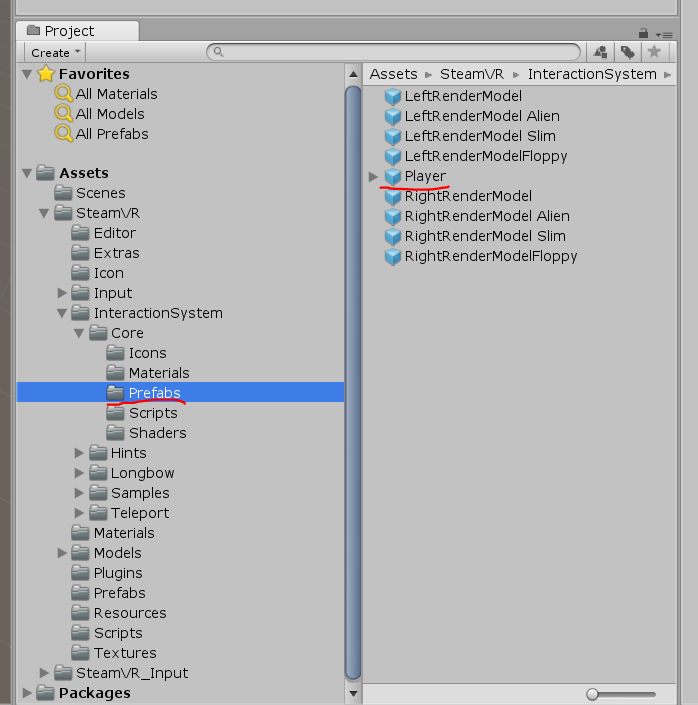
Теперь нужно добавить Игрока (Player из \Assets\SteamVR\InteractionSystem\Core\Prefabs) в Сцену и удалить Main Camera
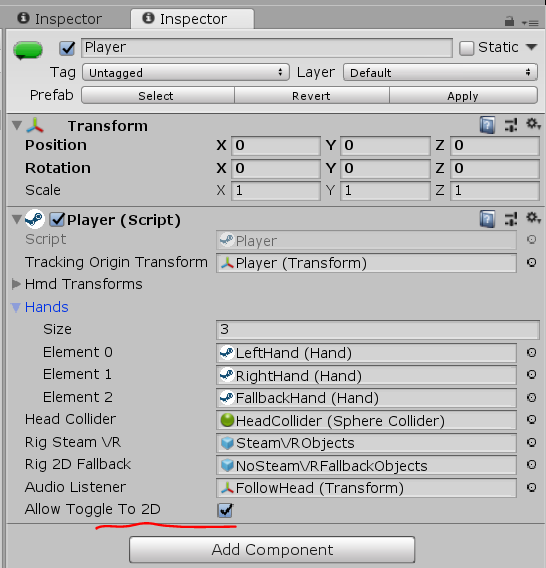
что бы работал режим имитации — он должен быть включён в свойствах Игрока
ещё полезно скопировать папку \Assets\SteamVR\InteractionSystem\Core\Icons в \Assets и переименовать её в Gizmos
-
Можно нажимать Play — но только фальшивая рука в имитации работать не будет, нужно скопировать скрипт от сюда и повесить его на Player->NoSteamVRFallbackObjects->FallbackHand
using System.Collections;
using System.Collections.Generic;
using UnityEngine;
using Valve.VR;
public class VrSimulatorHandFixer156: SteamVR_Behaviour_Pose
{
Valve.VR.InteractionSystem.Hand _hand;
protected override void Start()
{
base.Start(); _hand = this.gameObject.GetComponent<Valve.VR.InteractionSystem.Hand>(); _hand.handType = SteamVR_Input_Sources.RightHand; GameObject broHand = GameObject.Instantiate(_hand.gameObject); Destroy(broHand.GetComponent<VrSimulatorHandFixer156>()); broHand.SetActive(false); _hand.otherHand = broHand.GetComponent<Valve.VR.InteractionSystem.Hand>(); _hand.otherHand.handType = SteamVR_Input_Sources.LeftHand; var spoofMouse = new SpoofMouseAction(); _hand.grabGripAction = spoofMouse; spoofMouse.InitializeDictionariesExposed(_hand.handType); this.poseAction = new Poser_SteamVR_Action_Pose(); } protected override void OnEnable() { } protected override void Update() { _hand.grabGripAction.UpdateValue(SteamVR_Input_Sources.RightHand); } protected override void OnDisable() { } protected override void CheckDeviceIndex() { } //---------------------------------------------------------------------------------------------- class SpoofMouseAction : SteamVR_Action_Boolean { public SpoofMouseAction() { } public void InitializeDictionariesExposed(SteamVR_Input_Sources source) { try { InitializeDictionaries(source); } catch(System.Exception e) { } } protected override void InitializeDictionaries(SteamVR_Input_Sources source) { base.InitializeDictionaries(source); onStateDown.Add(source, null); onStateUp.Add(source, null); actionData.Add(source, new InputDigitalActionData_t()); lastActionData.Add(source, new InputDigitalActionData_t()); } public override void UpdateValue(SteamVR_Input_Sources inputSource) { lastActionData[inputSource] = actionData[inputSource]; tempActionData.bState = Input.GetMouseButton(0) || Input.GetMouseButtonDown(0); tempActionData.bChanged = Input.GetMouseButtonDown(0) || Input.GetMouseButtonUp(0); tempActionData.bActive = true; //tempActionData.fUpdateTime //tempActionData.act actionData[inputSource] = tempActionData; changed[inputSource] = tempActionData.bChanged; active[inputSource] = tempActionData.bActive; activeOrigin[inputSource] = tempActionData.activeOrigin; updateTime[inputSource] = Time.time;// tempActionData.fUpdateTime; if (changed[inputSource]) lastChanged[inputSource] = Time.time; if (onStateDown[inputSource] != null && GetStateDown(inputSource)) onStateDown[inputSource].Invoke(this); if (onStateUp[inputSource] != null && GetStateUp(inputSource)) onStateUp[inputSource].Invoke(this); if (onChange[inputSource] != null && GetChanged(inputSource)) onChange[inputSource].Invoke(this); if (onUpdate[inputSource] != null) onUpdate[inputSource].Invoke(this); if (onActiveChange[inputSource] != null && lastActionData[inputSource].bActive != active[inputSource]) onActiveChange[inputSource].Invoke(this, active[inputSource]); } } class Poser_SteamVR_Action_Pose : SteamVR_Action_Pose { public override bool GetActive(SteamVR_Input_Sources inputSource) { return false; } }
}
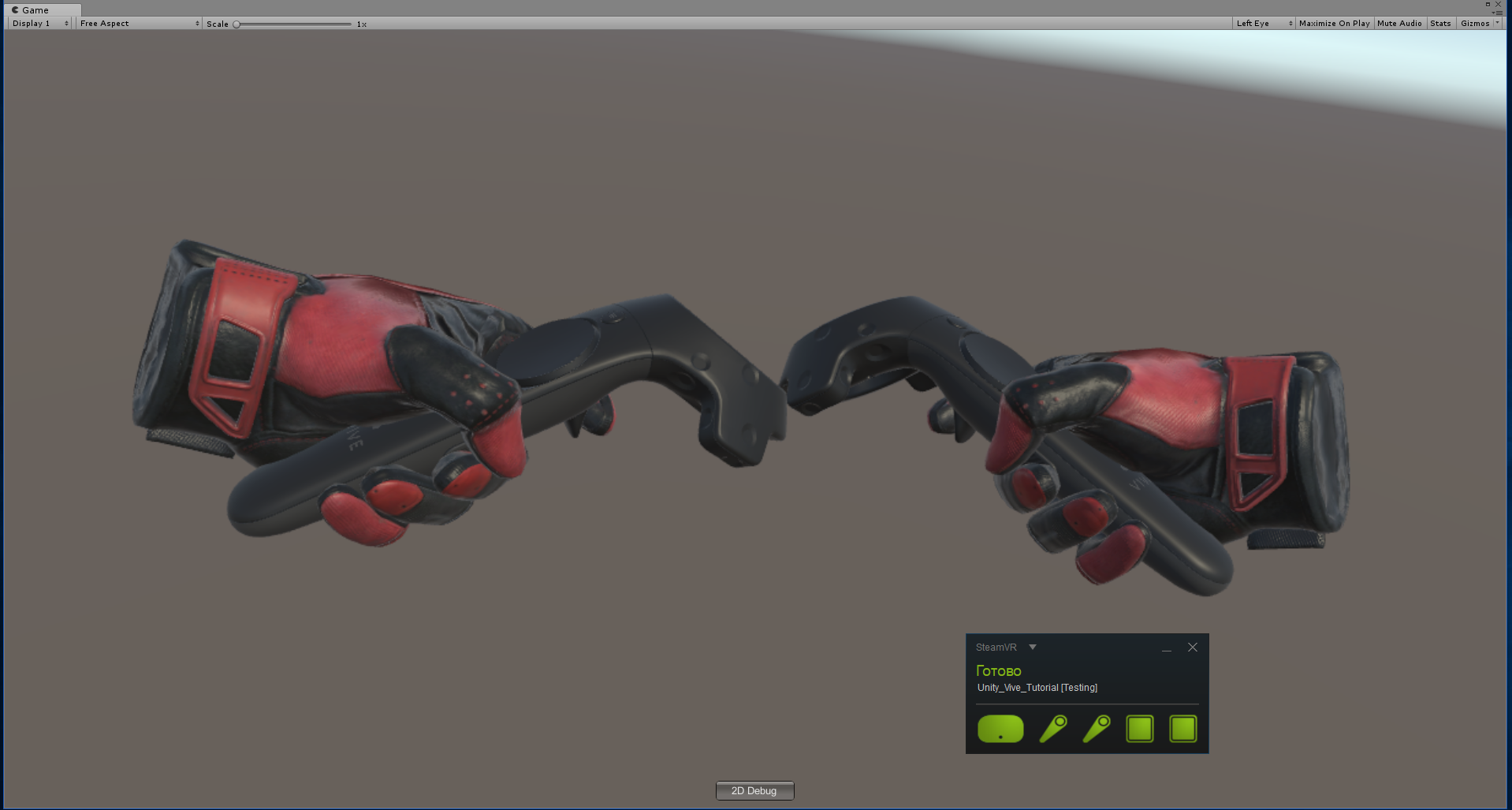
В режиме VR при включенных контролерах — они будут видны
-
Мы добавили VR, но даже перемещаться не можем. В плагине есть реализация телепортации
для её включения нужно добавить в сцену Teleporting из \Assets\SteamVR\InteractionSystem\Teleport\Prefabs
а также расставить TeleportPoint от туда же
Телепортироватся можно и в имитации — клавишей T
-
Можно создать поверхность телепортации — Создаём поверхность (plane) и вешаем на неё скрипт TeleportArea.cs из \Assets\SteamVR\InteractionSystem\Teleport\Scripts

-
Теперь попробуем взаимодействие с объектами — создадим Cube и повесим на него скрипт Interactable.cs из \Assets\SteamVR\InteractionSystem\Core\Scripts
теперь он подсвечивается, но с ним ничего не происходит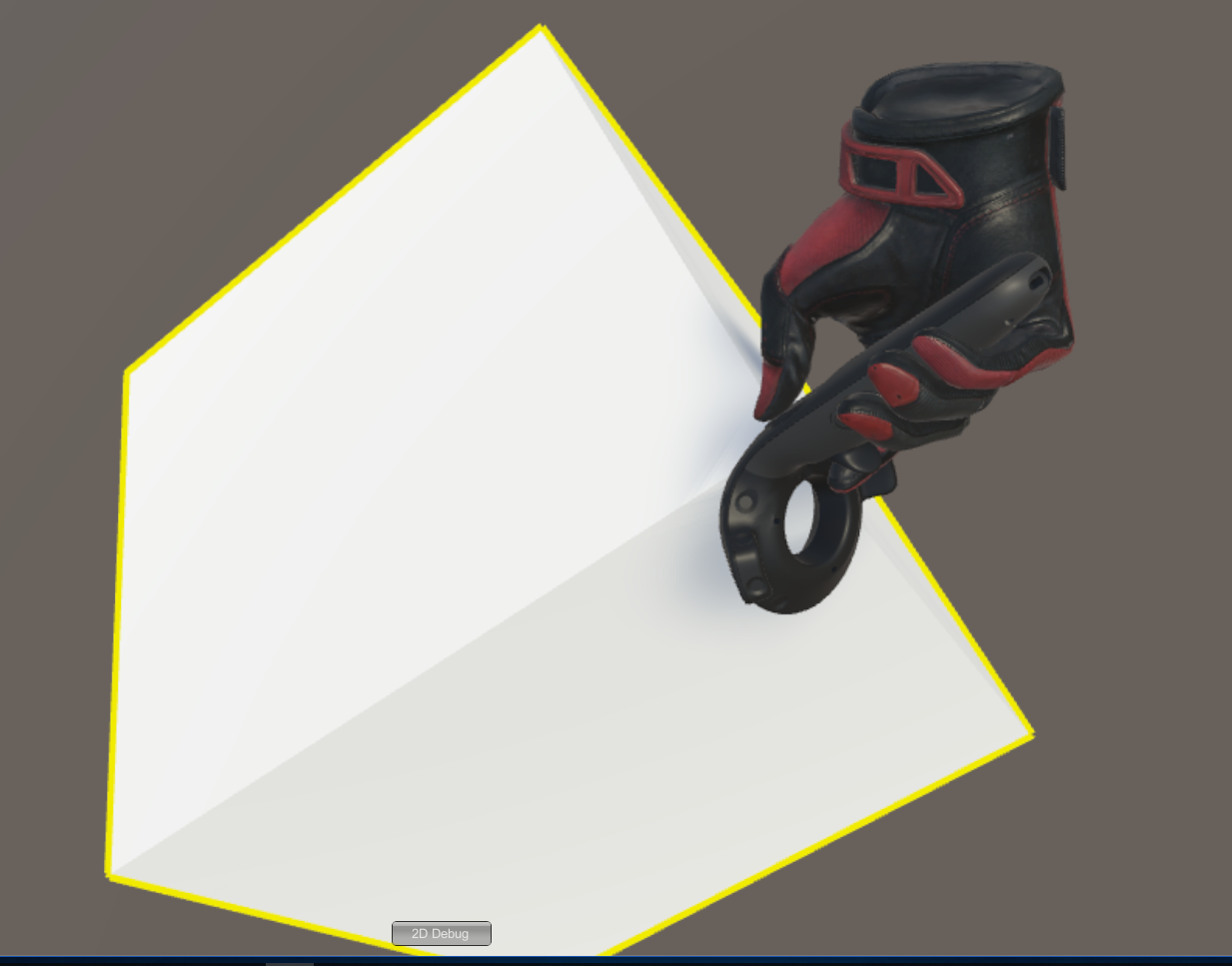
-
Нам нужно прописать взаимодействие — создадим для Cube новый скрипт
using System.Collections;
using System.Collections.Generic;
using UnityEngine;
using Valve.VR.InteractionSystem;
public class NewBehaviourScript: MonoBehaviour {
private Hand.AttachmentFlags attachmentFlags = Hand.defaultAttachmentFlags & (~Hand.AttachmentFlags.SnapOnAttach) & (~Hand.AttachmentFlags.DetachOthers) & (~Hand.AttachmentFlags.VelocityMovement); private Interactable interactable; // Use this for initialization void Start () { interactable = this.GetComponent<Interactable>(); } private void HandHoverUpdate(Hand hand) { GrabTypes startingGrabType = hand.GetGrabStarting(); bool isGrabEnding = hand.IsGrabEnding(this.gameObject); if (startingGrabType != GrabTypes.None) { // Call this to continue receiving HandHoverUpdate messages, // and prevent the hand from hovering over anything else hand.HoverLock(interactable); // Attach this object to the hand hand.AttachObject(gameObject, startingGrabType, attachmentFlags); } else if (isGrabEnding) { // Detach this object from the hand hand.DetachObject(gameObject); // Call this to undo HoverLock hand.HoverUnlock(interactable); } }
}
более подробно про взаимодействие можно посмотреть в примерах к плагину, в частности в \Assets\SteamVR\InteractionSystem\Samples\Scripts\InteractableExample.cs
А мы дальше попробуем сделать то, чего в примерах нет — добавить новые действия
-
Откроем скрипт Player.cs и добавим поля
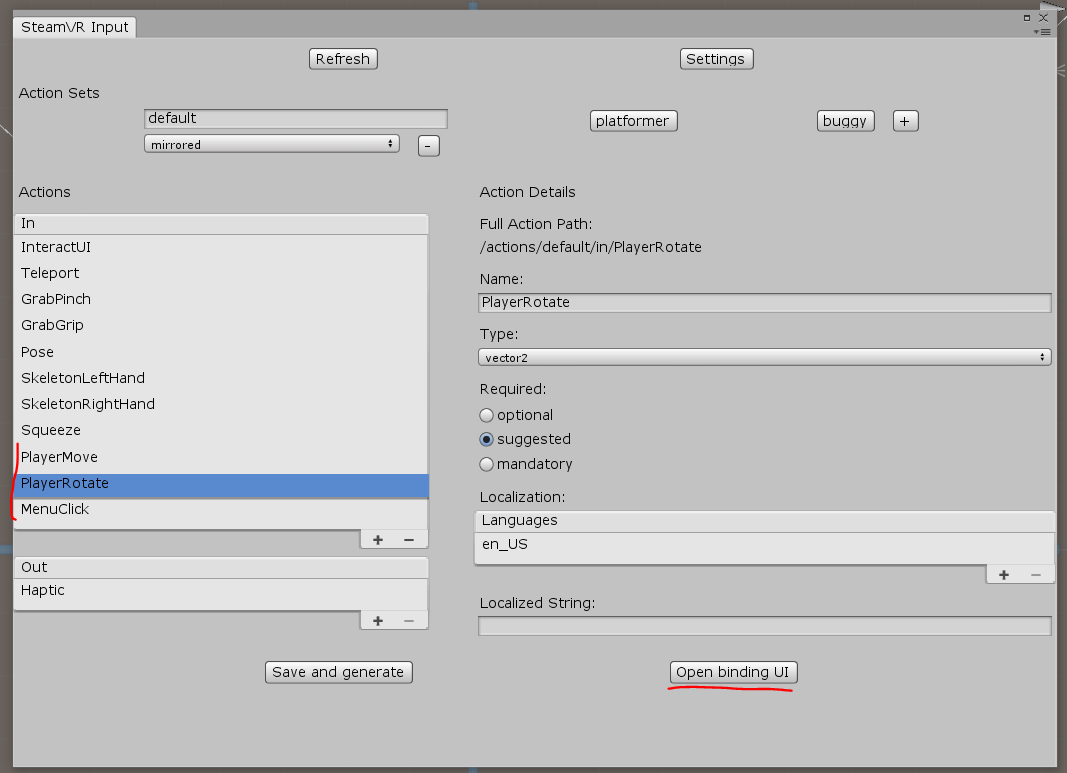
[SteamVR_DefaultAction("PlayerMove", "default")] public SteamVR_Action_Vector2 a_move; [SteamVR_DefaultAction("PlayerRotate", "default")] public SteamVR_Action_Vector2 a_rotate; [SteamVR_DefaultAction("MenuClick", "default")] public SteamVR_Action_Boolean a_menu;
допустимые типы для возвращаемых значений можно посмотреть в \Assets\SteamVR\Input
И метод Update:
private void Update()
{
bool st = a_menu.GetStateDown(SteamVR_Input_Sources.Any);
if (st)
{
this.transform.position = new Vector3(0, 0, 0);
}
else
{
Camera camera = this.GetComponentInChildren();
Quaternion cr = Quaternion.Euler(0, 0, 0);
if (camera != null)
{
Vector2 r = a_rotate.GetAxis(SteamVR_Input_Sources.RightHand);
Quaternion qp = this.transform.rotation;
qp.eulerAngles += new Vector3(0, r.x, 0);
this.transform.rotation = qp;
cr = camera.transform.rotation;
}
Vector2 m = a_move.GetAxis(SteamVR_Input_Sources.LeftHand);
m = Quaternion.Euler(0, 0, -cr.eulerAngles.y) * m;
this.transform.position += new Vector3(m.x / 10, 0, m.y / 10);
}
}
//======= Copyright © Valve Corporation, All rights reserved. ===============
//
// Purpose: Player interface used to query HMD transforms and VR hands
//
//=============================================================================
using UnityEngine;
using System.Collections;
using System.Collections.Generic;
namespace Valve.VR.InteractionSystem
{
//————————————————————————-
// Singleton representing the local VR player/user, with methods for getting
// the player’s hands, head, tracking origin, and guesses for various properties.
//————————————————————————-
public class Player: MonoBehaviour
{
[Tooltip( «Virtual transform corresponding to the meatspace tracking origin. Devices are tracked relative to this.» )]
public Transform trackingOriginTransform;
[Tooltip( "List of possible transforms for the head/HMD, including the no-SteamVR fallback camera." )] public Transform[] hmdTransforms; [Tooltip( "List of possible Hands, including no-SteamVR fallback Hands." )] public Hand[] hands; [Tooltip( "Reference to the physics collider that follows the player's HMD position." )] public Collider headCollider; [Tooltip( "These objects are enabled when SteamVR is available" )] public GameObject rigSteamVR; [Tooltip( "These objects are enabled when SteamVR is not available, or when the user toggles out of VR" )] public GameObject rig2DFallback; [Tooltip( "The audio listener for this player" )] public Transform audioListener; public bool allowToggleTo2D = true; [SteamVR_DefaultAction("PlayerMove", "default")] public SteamVR_Action_Vector2 a_move; [SteamVR_DefaultAction("PlayerRotate", "default")] public SteamVR_Action_Vector2 a_rotate; [SteamVR_DefaultAction("MenuClick", "default")] public SteamVR_Action_Boolean a_menu; //------------------------------------------------- // Singleton instance of the Player. Only one can exist at a time. //------------------------------------------------- private static Player _instance; public static Player instance { get { if ( _instance == null ) { _instance = FindObjectOfType<Player>(); } return _instance; } } //------------------------------------------------- // Get the number of active Hands. //------------------------------------------------- public int handCount { get { int count = 0; for ( int i = 0; i < hands.Length; i++ ) { if ( hands[i].gameObject.activeInHierarchy ) { count++; } } return count; } } //------------------------------------------------- // Get the i-th active Hand. // // i - Zero-based index of the active Hand to get //------------------------------------------------- public Hand GetHand( int i ) { for ( int j = 0; j < hands.Length; j++ ) { if ( !hands[j].gameObject.activeInHierarchy ) { continue; } if ( i > 0 ) { i--; continue; } return hands[j]; } return null; } //------------------------------------------------- public Hand leftHand { get { for ( int j = 0; j < hands.Length; j++ ) { if ( !hands[j].gameObject.activeInHierarchy ) { continue; } if ( hands[j].handType != SteamVR_Input_Sources.LeftHand) { continue; } return hands[j]; } return null; } } //------------------------------------------------- public Hand rightHand { get { for ( int j = 0; j < hands.Length; j++ ) { if ( !hands[j].gameObject.activeInHierarchy ) { continue; } if ( hands[j].handType != SteamVR_Input_Sources.RightHand) { continue; } return hands[j]; } return null; } } //------------------------------------------------- // Get Player scale. Assumes it is scaled equally on all axes. //------------------------------------------------- public float scale { get { return transform.lossyScale.x; } } //------------------------------------------------- // Get the HMD transform. This might return the fallback camera transform if SteamVR is unavailable or disabled. //------------------------------------------------- public Transform hmdTransform { get { if (hmdTransforms != null) { for (int i = 0; i < hmdTransforms.Length; i++) { if (hmdTransforms[i].gameObject.activeInHierarchy) return hmdTransforms[i]; } } return null; } } //------------------------------------------------- // Height of the eyes above the ground - useful for estimating player height. //------------------------------------------------- public float eyeHeight { get { Transform hmd = hmdTransform; if ( hmd ) { Vector3 eyeOffset = Vector3.Project( hmd.position - trackingOriginTransform.position, trackingOriginTransform.up ); return eyeOffset.magnitude / trackingOriginTransform.lossyScale.x; } return 0.0f; } } //------------------------------------------------- // Guess for the world-space position of the player's feet, directly beneath the HMD. //------------------------------------------------- public Vector3 feetPositionGuess { get { Transform hmd = hmdTransform; if ( hmd ) { return trackingOriginTransform.position + Vector3.ProjectOnPlane( hmd.position - trackingOriginTransform.position, trackingOriginTransform.up ); } return trackingOriginTransform.position; } } //------------------------------------------------- // Guess for the world-space direction of the player's hips/torso. This is effectively just the gaze direction projected onto the floor plane. //------------------------------------------------- public Vector3 bodyDirectionGuess { get { Transform hmd = hmdTransform; if ( hmd ) { Vector3 direction = Vector3.ProjectOnPlane( hmd.forward, trackingOriginTransform.up ); if ( Vector3.Dot( hmd.up, trackingOriginTransform.up ) < 0.0f ) { // The HMD is upside-down. Either // -The player is bending over backwards // -The player is bent over looking through their legs direction = -direction; } return direction; } return trackingOriginTransform.forward; } } //------------------------------------------------- void Awake() { SteamVR.Initialize(true); //force openvr if ( trackingOriginTransform == null ) { trackingOriginTransform = this.transform; } } //------------------------------------------------- private IEnumerator Start() { _instance = this; while (SteamVR_Behaviour.instance.forcingInitialization) yield return null; if ( SteamVR.instance != null ) { ActivateRig( rigSteamVR ); } else {
if !HIDE_DEBUG_UI
ActivateRig( rig2DFallback );
endif
} } private void Update() { bool st = a_menu.GetStateDown(SteamVR_Input_Sources.Any); if (st) { this.transform.position = new Vector3(0, 0, 0); } else { Camera camera = this.GetComponentInChildren<Camera>(); Quaternion cr = Quaternion.Euler(0, 0, 0); if (camera != null) { Vector2 r = a_rotate.GetAxis(SteamVR_Input_Sources.RightHand); Quaternion qp = this.transform.rotation; qp.eulerAngles += new Vector3(0, r.x, 0); this.transform.rotation = qp; cr = camera.transform.rotation; } Vector2 m = a_move.GetAxis(SteamVR_Input_Sources.LeftHand); m = Quaternion.Euler(0, 0, -cr.eulerAngles.y) * m; this.transform.position += new Vector3(m.x / 10, 0, m.y / 10); } } //------------------------------------------------- void OnDrawGizmos() { if ( this != instance ) { return; } //NOTE: These gizmo icons don't work in the plugin since the icons need to exist in a specific "Gizmos" // folder in your Asset tree. These icons are included under Core/Icons. Moving them into a // "Gizmos" folder should make them work again. Gizmos.color = Color.white; Gizmos.DrawIcon( feetPositionGuess, "vr_interaction_system_feet.png" ); Gizmos.color = Color.cyan; Gizmos.DrawLine( feetPositionGuess, feetPositionGuess + trackingOriginTransform.up * eyeHeight ); // Body direction arrow Gizmos.color = Color.blue; Vector3 bodyDirection = bodyDirectionGuess; Vector3 bodyDirectionTangent = Vector3.Cross( trackingOriginTransform.up, bodyDirection ); Vector3 startForward = feetPositionGuess + trackingOriginTransform.up * eyeHeight * 0.75f; Vector3 endForward = startForward + bodyDirection * 0.33f; Gizmos.DrawLine( startForward, endForward ); Gizmos.DrawLine( endForward, endForward - 0.033f * ( bodyDirection + bodyDirectionTangent ) ); Gizmos.DrawLine( endForward, endForward - 0.033f * ( bodyDirection - bodyDirectionTangent ) ); Gizmos.color = Color.red; int count = handCount; for ( int i = 0; i < count; i++ ) { Hand hand = GetHand( i ); if ( hand.handType == SteamVR_Input_Sources.LeftHand) { Gizmos.DrawIcon( hand.transform.position, "vr_interaction_system_left_hand.png" ); } else if ( hand.handType == SteamVR_Input_Sources.RightHand) { Gizmos.DrawIcon( hand.transform.position, "vr_interaction_system_right_hand.png" ); } else { /* Hand.HandType guessHandType = hand.currentHandType; if ( guessHandType == Hand.HandType.Left ) { Gizmos.DrawIcon( hand.transform.position, "vr_interaction_system_left_hand_question.png" ); } else if ( guessHandType == Hand.HandType.Right ) { Gizmos.DrawIcon( hand.transform.position, "vr_interaction_system_right_hand_question.png" ); } else { Gizmos.DrawIcon( hand.transform.position, "vr_interaction_system_unknown_hand.png" ); } */ } } } //------------------------------------------------- public void Draw2DDebug() { if ( !allowToggleTo2D ) return; if ( !SteamVR.active ) return; int width = 100; int height = 25; int left = Screen.width / 2 - width / 2; int top = Screen.height - height - 10; string text = ( rigSteamVR.activeSelf ) ? "2D Debug" : "VR"; if ( GUI.Button( new Rect( left, top, width, height ), text ) ) { if ( rigSteamVR.activeSelf ) { ActivateRig( rig2DFallback ); } else { ActivateRig( rigSteamVR ); } } } //------------------------------------------------- private void ActivateRig( GameObject rig ) { rigSteamVR.SetActive( rig == rigSteamVR ); rig2DFallback.SetActive( rig == rig2DFallback ); if ( audioListener ) { audioListener.transform.parent = hmdTransform; audioListener.transform.localPosition = Vector3.zero; audioListener.transform.localRotation = Quaternion.identity; } } //------------------------------------------------- public void PlayerShotSelf() { //Do something appropriate here } }
}
-
Запустим Window\SteamVR Imput, Создадим наши действия в наборе default и сохраним их, теперь выберем пункт «Open binding UI» (SteamVR должен быть запущен и как минимум один контролер включён)
-
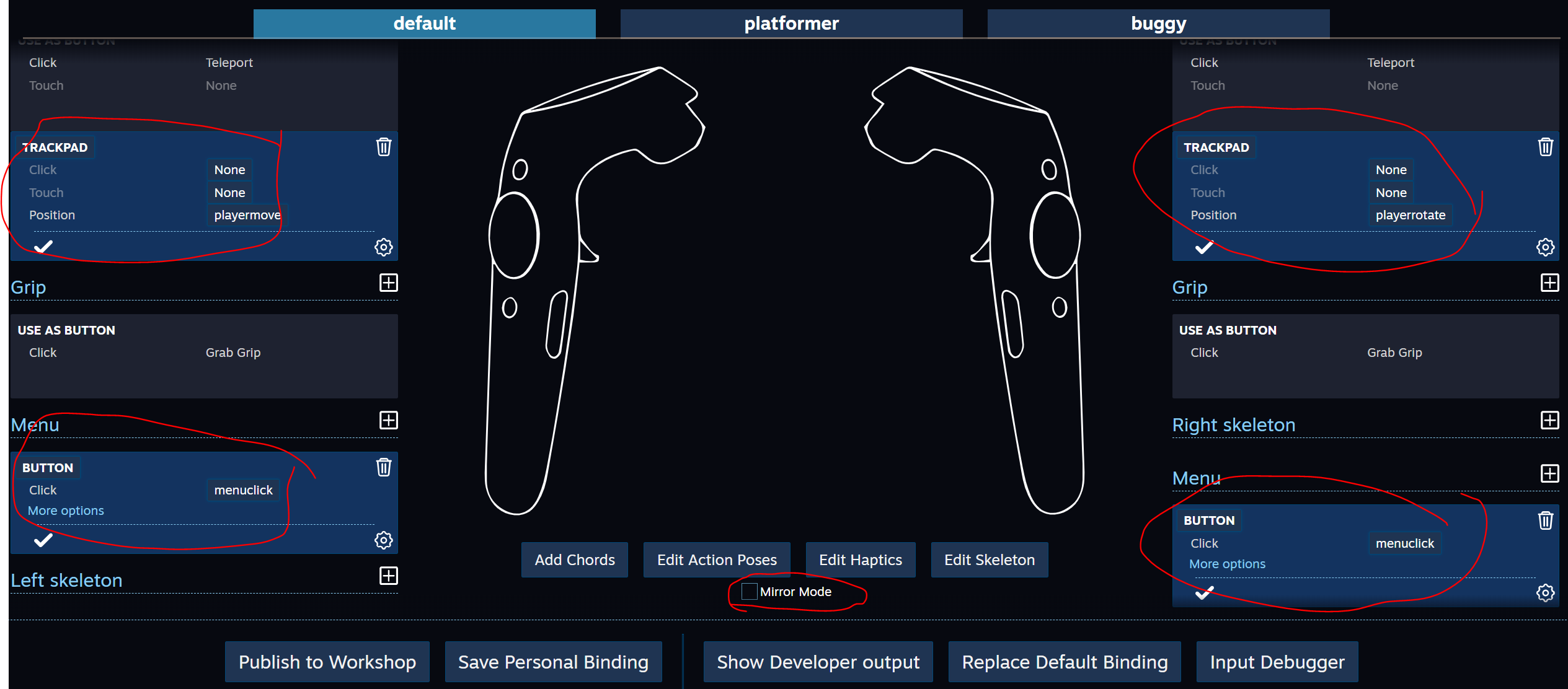
В браузере откроется вкладка Controller Binding — в ней нужно настроить связь наших действий с контролерами: PlayerMove мы повесим на левый TRACKPAD (не забудьте выключить Mirror Mode), PlayerRotate на правый TRACKPAD, а MenuClick повесим на клавиши Menu
-
Закроем Controller Binding и сохраним изменения
-
В свойствах Player свяжем новые действия

-
Запускаем Play
Заключение
Следует отметить несколько моментов. Некоторые действия в SteamVR Imput могут заставить Unity задуматься надолго, в принципе эти изменения можно внести самому в код, а вместо использования Controller Binding можно напрямую править json-файлы, но большой риск ошибки которые сложно будет отловить.
Для более глубокого изучения плагина — полезно подробно изучить примеры, ну и конечно — читайте документацию ;=)
ссылка на оригинал статьи https://habr.com/post/426357/
Добавить комментарий