Занимаюсь грузоперевозками на своей газели, и у меня родилась идея сделать функцию отслеживания своего местоположения для всех посетителей своего сайта. Это очень удобно для тех, кто следит за своим грузом или тех, кто ждет машину. У меня получилось. И в этом посте я расскажу вам как реализовать эту функцию, которая, кстати, обойдется совсем недорого. Статья предназначена для людей, которые почти не имеют опыта в сфере создания сайтов и программировании в целом.
Вам понадобится:
-
Редактор Visual Studio Code
-
Среда разработки Android Studio
-
Аккаунт Гугл для API Google Maps
-
Доменное имя и хостинг с базой данных SQL
-
Обычный телефон на андроиде
Для начала рассмотрим схему взаимодействия всех элементов.

После того как пользователь заходит на сайт, активируется подключенный в index.html файл myJsCode.js, в котором каждые 2 секунды идет обращение в google maps. В google maps передаются координаты текущего местоположения, которые хранятся в базе данных sql. Google maps возвращает карту с маркером, установленным в точке, соответствующей переданным координатам. Считывание новых координат из базы данных осуществляется в myJsCode.js через coordinatesToBrowser.php также каждые 2 секунды. Запись координат в базу данных осуществляет Android приложение через coordinatesFromAndroid.php каждые 2 секунды при условии движения андроид устройства. Пользователь приложения может включать и выключать определение координат. Далее соберем эту схему.
1. Для инициализации google maps потребуются API ключ. Для его получения переходим на https://cloud.google.com/maps-platform

Нажимаем Get started.
Создаем новый проект.
В созданном проекте выбираем Maps JavaScript API.

Нажимаем Enable.
Жмем на гамбургер -> APIs & Services -> Credentials.

Нажимаем на +Create Credentials
И мы получили Api key

2. Создаем файл index.html и style.css и myJsCode.js. Писать код будем в редакторе Visual Studio Code, скачиваем его по ссылке https://code.visualstudio.com/
index.html В 71 строчке меняете API key на свой. В 69 строчке подключается файл myJsCode.js, который мы напишем ниже. В 53 строчке в блоке div будет располагаться карта с маркером.
<!doctype html> <html> <head> <meta charset="utf-8"> <meta name="viewport" content="width=device-width"> <link rel="stylesheet" , href="style.css"> <title>Название сайта</title> <meta name="description" content="Описание " /> <meta name="Keywords" content="Ключевые слова" /> </head> <body> <div class="box"> <header > <a class="logo" href="index.html"><img src="images/logo.jpg" width="40" height="40" alt="logo"></a> <h1 class="logoTitle">Заголовок 1</h1> </header> <div class="content"> <p class="phoneAndName"> <a class="imgphone" href="tel: 811111111"> <img src="images/phone.jpg" width="30" height="30" alt=""> </a> <b><a class="telephone" href="tel: 811111111">8-111-11-11 </a></b> <b><span class="yourName"> Ваше имя</span></b> </p> <p class="descriptionYourBuisless">Описание вашей деятельности </p> <div class="descriptionHeader2"> <h2 class="Header2">Заголовок 2:</h2> <span class="Header2Text"> Описание </span> </div> <div class="adPointers"> <ul class="row1"> <li>Пункт1</li> <li>Пункт2</li> </ul> <ul class="row2"> <li>Пункт3</li> <li>Пункт4</li> </ul> </div> </div> <span></span> <div class="photoCargo"> <div id="map-canvas"></div> </div> <div class="descriptionHeader3"> <h3 class="Header3">Заголовок 3:</h2> <span class="Header3Text"> Описание </span> </div> <footer> <hr> <p>Контакты: г. Ваш город <br /> Email: <a class="foot" href="mailto:yourMail@yandex.ru">yourMail@yandex.ru</a> <br />телефон: <a class="foot" href="tel: 8111111111">8-111-11-11-11</a> </p> </footer> </div> <script src="myJsCode.js"></script> <script src="https://maps.googleapis.com/maps/api/js?v=3.exp&key=AIzaSyBPV_qSO1VI11pXLJuvQtXzVh1pTQjFkC1&callback=initialize"> </script> </body> </html>Далее пишем style.css В этом файле оставляем все как есть. Здесь уже предусмотрена адаптация под мобильные устройства с помощью media запросов.
* { margin: 0; padding: 0; } .box{ max-width:1560px; margin: 0px auto; padding: 0px 0px; } header{ position: fixed; background-color: white; padding-top: 10px; height:60px; width: 100%; box-shadow: 7px 7px 5px rgba(63, 62, 62, 0.6); /* Тень */ } .content{ padding-top: 100px; } .logo{ float:left; margin-left: 10px; } .logoTitle{ float:left; margin-top: 10px; margin-left: 10px; text-decoration: none; font-family: sans-serif; font-size: 20px; color: #000; } .phoneAndName{ text-align: center; color: #000; margin-bottom: 15px; } .imgphone{ text-decoration: none; } .telephone{ text-decoration: none; font-family: sans-serif; font-size: 30px; color: #000; } .yourName{ color: #030c01; font-size: 30px; } .descriptionYourBuisless{ text-align: center; font-size: 20px; color: #000; margin-bottom: 20px; padding: 0px 10px; } .descriptionHeader2{ justify-content: center; display:flex; } .Header2{ color: #000; font-size: 20px; padding-right: 10px; padding-left: 40px; } .Header2Text{ padding-right: 20px; color: #000; font-size: 20px; margin-bottom: 20px; } .photoCargo{ margin: auto; width:55%; height:100%; color: #000; } .row1{ padding-left: 20px; padding-right: 20px; padding-bottom: 20px; margin-right: 20px; } .row2{ padding-left: 20px; padding-right: 20px; padding-bottom: 20px; } li{ font-size: 20px; color: #000; } #map-canvas{ height:600px; width: 100%; margin-top: 20px; } .descriptionHeader3{ margin-top: 20px; justify-content: center; display:flex; } .Header3{ color: #000; font-size: 20px; padding-right: 10px; padding-left: 40px; } .Header3Text{ padding-right: 20px; color: #000; font-size: 20px; margin-bottom: 20px; } footer{ text-align: center; font-size: 14px; color: #000; margin-top: 20px; margin-bottom: 20px; padding-left: 5px; padding-right: 5px; } @media(min-width: 1560px){ .adPointers{ justify-content: center; display:flex; } } @media(max-width: 1560px){ .adPointers{ justify-content: center; display:flex; } .box{ max-width:1460px; } } @media(max-width: 1400px){ .box{ max-width:1360px; } .photoCargo{ width:60%; } } @media(max-width: 1200px){ .box{ max-width:970px; } .photoCargo{ width:65%; } } @media(max-width: 992px){ .box{ max-width:850px; } .photoCargo{ width:80%; } } @media(max-width: 767px){ .box{ max-width:none; } .photoCargo{ width:90%; } } @media(max-width: 695px){ .photoCargo{ width:95%; } } @media(max-width: 450px){ .adPointers{ flex-direction: column; margin-left: 100px; } }myJsCode.js В 1 и 2 строчке задаются координаты по умолчанию. В 6 строчке функция инициализации google maps. Внутри функции setTimeout каждые 2 секунды идет считывание координат из coordinatesToBrowser.php и передача новых координат в google maps. Файл coordinatesToBrowser.php напишем ниже.
window.lat = 37.7850; window.lng = -122.4383; var map; var mark; var initialize = function () { map = new google.maps.Map(document.getElementById('map-canvas'), { center: { lat: lat, lng: lng }, zoom: 12 }); mark = new google.maps.Marker({ position: { lat: lat, lng: lng }, map: map }); }; var compare=0; let timerId = setTimeout(function tick() { var xhr = new XMLHttpRequest(); xhr.open('GET', 'coordinatesToBrowser.php', true); xhr.onreadystatechange = function() { if (xhr.readyState == 4 && xhr.status == 200) { var jsonObj=JSON.parse(xhr.responseText); const arr = Object.keys(jsonObj).map((key) => [key, jsonObj[key]]); lat= parseFloat(arr[0][1]); lng= parseFloat(arr[1][1]); if(compare!=lat){ map.setCenter({ lat: lat, lng: lng, alt: 0 }); mark.setPosition({ lat: lat, lng: lng, alt: 0 }); } compare=lat; } } xhr.send(null); timerId = setTimeout(tick, 2000); }, 2000);3. Все файлы заливаете на свой хост. Далее переходим в php MyAdmin. Создаете базу данных или используете уже созданную автоматически. В ней создаете таблицу под названием coordinates. В этой таблице создаете 3 столбца: id, latitude и longitude как на изображении.

4. Далее в папку сайта на хостинг помещаете два php файла, которые будут взаимодействовать с базой данных, а именно таблицей coordinates. Файл coordinatesToBrowser.php будет считывать координаты из базы, а coordinatesFromAndroid.php будет записывать переданные android устройством координаты в базу данных.
coordinatesToBrowser.php В 15 строчке происходит выборка из созданной нами таблицы coordinates, а именно из столбцов latitude и longitude. Подключение к самой базе данных прокомментировано в коде.
<?php $host = 'localhost'; // Хост, у нас все локально $user = 'u1111111111'; // Имя созданного вами пользователя $pass = '22222222'; // Установленный вами пароль пользователю $db_name = 'u11111111111'; // Имя базы данных $link = mysqli_connect($host, $user, $pass, $db_name); // Соединяемся с базой // Ругаемся, если соединение установить не удалось if (!$link) { // echo 'Не могу соединиться с БД. Код ошибки: ' . mysqli_connect_errno() . ', ошибка: ' . mysqli_connect_error(); exit; } else{} $sql = mysqli_query($link, "SELECT * FROM coordinates"); if ($sql) { $row = $sql->fetch_assoc(); $lat=$row['latitude']; $lon=$row['<?php $host = 'localhost'; // Хост, у нас все локально $user = 'u1111111111'; // Имя созданного вами пользователя $pass = '22222222'; // Установленный вами пароль пользователю $db_name = 'u11111111111'; // Имя базы данных $link = mysqli_connect($host, $user, $pass, $db_name); // Соединяемся с базой // Ругаемся, если соединение установить не удалось if (!$link) { // echo 'Не могу соединиться с БД. Код ошибки: ' . mysqli_connect_errno() . ', ошибка: ' . mysqli_connect_error(); exit; } else{} $sql = mysqli_query($link, "SELECT * FROM coordinates"); if ($sql) { $row = $sql->fetch_assoc(); $lat=$row['latitude']; $lon=$row['longitude']; $cart = array( "latitude" => $lat, "longitude" => $lon, ); echo json_encode( $cart ); } else { // echo '<p>Произошла ошибка: ' . mysqli_error($link) . '</p>'; } ?>]; $cart = array( "latitude" => $lat, "longitude" => $lon, ); echo json_encode( $cart ); } else { // echo '<p>Произошла ошибка: ' . mysqli_error($link) . '</p>'; } ?>coordinatesFromAndroid.php. В 22 строчке идет перезапись столбцов новыми значениями.
<?php $Latitude=37.7850; $Longitude=-122.4383; $host = 'localhost'; // Хост, у нас все локально $user = 'u1111111'; // Имя созданного вами пользователя $pass = 'f2222222'; // Установленный вами пароль пользователю $db_name = 'u1111111'; // Имя базы данных $link = mysqli_connect($host, $user, $pass, $db_name); // Соединяемся с базой // Ругаемся, если соединение установить не удалось if (!$link) { // echo 'Не могу соединиться с БД. Код ошибки: ' . mysqli_connect_errno() . ', ошибка: ' . mysqli_connect_error(); exit; } else{ if (!empty($_POST["Latitude"]&&!empty($_POST["Longitude"]))){ $Latitude=$_POST["Latitude"]; $Longitude=$_POST["Longitude"]; } $sql = mysqli_query($link, "UPDATE coordinates SET latitude='$Latitude', longitude='$Longitude' WHERE id='1'"); if ($sql) { // echo '<p>Данные успешно добавлены в таблицу.</p>'; } else { // echo '<p>Произошла ошибка: ' . mysqli_error($link) . '</p>'; } } ?>5. Заключительным этапом мы создадим андроид приложение, которое будет передавать координаты каждые 2 секунды во время движения. Приложение запускает сервис, который запрашивает текущие координаты у встроенного gps приемника. Для работы в фоновом режиме необходимо стороннее приложение, например такси или карты, при работе которых в верхней панели отображается ‘самолетик’ (геолокация). Несмотря на то, что сервис очень живучий в приложении предусмотрен менеджер, перезапускающий сервис каждые 30 секунд на случай, если андроид очистит от него память.
Итак скачиваем и устанавливаем среду разработки приложений Android Studio.
Создаете новый проект, выбрав empty Activity

Называете приложение и выбираете язык Java
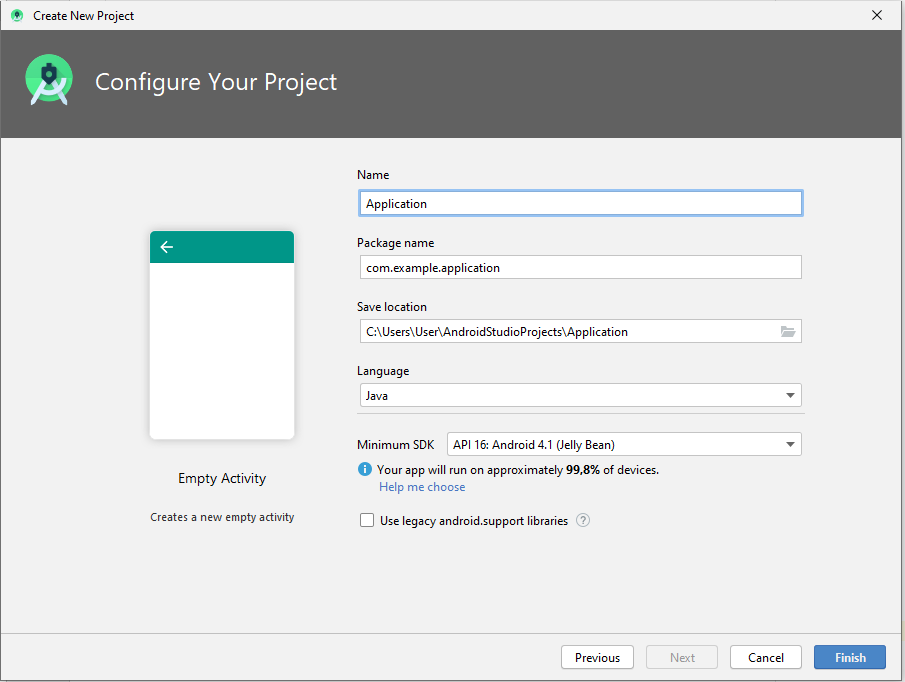
В баре слева выбираете App -> res -> layout открываете файл activity_main.xml и меняете его содержимое на:
activity_main.xml Файл представляет собой внешний вид страницы приложения. На нем расположены кнопки Получить координаты и Сбросить координаты, а также текстовые поля для отображения координат и региона.
<RelativeLayout xmlns:android="http://schemas.android.com/apk/res/android" android:layout_width="match_parent" android:background="#ffffff" android:layout_height="match_parent"> <TextView android:layout_width="match_parent" android:layout_height="50dp" android:background="@color/col" android:gravity="center" android:text="GPS" android:textColor="#ffffff" android:textSize="20dp" /> <LinearLayout android:layout_width="match_parent" android:layout_height="wrap_content" android:layout_centerInParent="true" android:orientation="vertical"> <LinearLayout android:layout_width="match_parent" android:orientation="horizontal" android:layout_height="50dp"> <TextView android:layout_width="150dp" android:layout_height="wrap_content" android:layout_gravity="center_vertical" android:layout_marginLeft="10dp" android:text="Широта" android:textColor="#000000" android:textSize="20dp" /> <TextView android:layout_width="wrap_content" android:layout_height="wrap_content" android:text="" android:id="@+id/tv_latitude" android:layout_gravity="center_vertical" android:layout_marginLeft="10dp" android:textColor="#000000" android:textSize="20dp"/> </LinearLayout> <LinearLayout android:layout_width="match_parent" android:orientation="horizontal" android:layout_height="50dp"> <TextView android:layout_width="150dp" android:layout_height="wrap_content" android:layout_gravity="center_vertical" android:layout_marginLeft="10dp" android:text="Долгота" android:textColor="#000000" android:textSize="20dp" /> <TextView android:layout_width="wrap_content" android:layout_height="wrap_content" android:text="" android:id="@+id/tv_longitude" android:layout_gravity="center_vertical" android:layout_marginLeft="10dp" android:textColor="#000000" android:textSize="20dp"/> </LinearLayout> <LinearLayout android:layout_width="match_parent" android:orientation="horizontal" android:layout_height="50dp"> <TextView android:layout_width="150dp" android:layout_height="wrap_content" android:layout_gravity="center_vertical" android:layout_marginLeft="10dp" android:text="Адрес" android:textColor="#000000" android:textSize="20dp" /> <TextView android:layout_width="wrap_content" android:layout_height="wrap_content" android:text="" android:id="@+id/tv_address" android:layout_gravity="center_vertical" android:layout_marginLeft="10dp" android:textColor="#000000" android:textSize="20dp"/> </LinearLayout> <LinearLayout android:layout_width="match_parent" android:orientation="horizontal" android:layout_height="50dp"> <TextView android:layout_width="150dp" android:layout_height="wrap_content" android:layout_gravity="center_vertical" android:layout_marginLeft="10dp" android:text="Область" android:textColor="#000000" android:textSize="20dp" /> <TextView android:layout_width="wrap_content" android:layout_height="wrap_content" android:text="" android:id="@+id/tv_area" android:layout_gravity="center_vertical" android:layout_marginLeft="10dp" android:textColor="#000000" android:textSize="20dp"/> </LinearLayout> <LinearLayout android:layout_width="match_parent" android:orientation="horizontal" android:layout_height="50dp"> <TextView android:layout_width="150dp" android:layout_height="wrap_content" android:layout_gravity="center_vertical" android:layout_marginLeft="10dp" android:text="Локация" android:textColor="#000000" android:textSize="20dp" /> <TextView android:layout_width="wrap_content" android:layout_height="wrap_content" android:text="" android:id="@+id/tv_locality" android:layout_gravity="center_vertical" android:layout_marginLeft="10dp" android:textColor="#000000" android:textSize="20dp"/> </LinearLayout> </LinearLayout> <Button android:id="@+id/btn_start" android:layout_width="match_parent" android:layout_height="wrap_content" android:layout_alignParentBottom="false" android:layout_marginTop="121dp" android:layout_marginBottom="12dp" android:text="Получить координаты" /> <Button android:id="@+id/btn_finish" android:layout_width="match_parent" android:layout_height="wrap_content" android:layout_alignParentBottom="true" android:layout_marginBottom="55dp" android:text="сбросить координаты" /> </RelativeLayout> Далее App ->manifest открываете файл AndroidManifest.xml и меняете его содержимое на:
AndroidManifest.xml Файл несет в себе информацию о приложении для операционной системы. В него включены данные об активити, сервисах, разрешениях и другом. Оставляете свой package=»yourpackage» строчка 3.
<?xml version="1.0" encoding="utf-8"?> <manifest xmlns:android="http://schemas.android.com/apk/res/android" package="yourpackage"> <uses-permission android:name="android.permission.INTERNET"/> <uses-permission android:name="android.permission.ACCESS_COARSE_LOCATION"/> <uses-permission android:name="android.permission.ACCESS_FINE_LOCATION"/> <uses-permission android:name="android.permission.ACCESS_BACKGROUND_LOCATION" /> <application android:allowBackup="true" android:icon="@mipmap/ic_launcher" android:label="@string/app_name" android:supportsRtl="true" android:theme="@style/AppTheme"> <activity android:name=".MainActivity" android:theme="@android:style/Theme.Translucent.NoTitleBar"> <intent-filter> <action android:name="android.intent.action.MAIN" /> <action android:name="android.intent.action.BOOT_COMPLETED"/> <category android:name="android.intent.category.LAUNCHER" /> </intent-filter> </activity> <uses-library android:name="org.apache.http.legacy" android:required="false"/> <service android:enabled="true" android:name=".GoogleService" /> <receiver android:name=".MyAlarmReceiver" /> </application> </manifest>Далее снова App -> res -> values открываете файл colors.xml и меняете его содержимое на:
colors.xml В файле задаются цвета элементов.
<?xml version="1.0" encoding="utf-8"?> <resources> <color name="colorPrimary">#6200EE</color> <color name="colorPrimaryDark">#3700B3</color> <color name="colorAccent">#03DAC5</color> <color name="colorTitle">#808040</color> <color name="col">#868602</color> </resources>Далее Gradle Scripts открываете файл build.grande(Module app) и меняете его содержимое на:
build.grande(Module app) В файле информация о сборке проекта и его зависимостях. В строчке 5 оставляете свой applicationId.
apply plugin: 'com.android.application' android { compileSdkVersion 30 buildToolsVersion "30.0.2" defaultConfig { applicationId "yourPackage" minSdkVersion 16 targetSdkVersion 30 versionCode 1 versionName "1.0" multiDexEnabled true testInstrumentationRunner "androidx.test.runner.AndroidJUnitRunner" useLibrary 'org.apache.http.legacy' // Библиотека для HTTP Client } buildTypes { release { minifyEnabled false proguardFiles getDefaultProguardFile('proguard-android-optimize.txt'), 'proguard-rules.pro' } } Далее снова App -> Java -> YourPackage открываете файл MainActivity.java и меняете его содержимое на:
MainActivity.java В этом файле код основного активити. Строку 1 оставляете свою. В файле проходит инициализация кнопок, текстовых полей. Инициализация AlarmManager, который ‘пробуждает’ основной сервис. Обработка нажатия кнопок. Обработка разрешений от пользователя. Прием и отображение координат и региона. Запуск сервиса GoogleService , который запрашивает gps координаты осуществляется в обработчике нажатия кнопки btn_start. Сброс координат в значение по умолчанию осуществляется в обработчике кнопки btn_finish. Сам GoogleService и AlarmManager опишем ниже.
package yourpackage; import android.Manifest; import android.app.Activity; import android.app.AlarmManager; import android.app.PendingIntent; import android.content.BroadcastReceiver; import android.content.Context; import android.content.Intent; import android.content.IntentFilter; import android.content.SharedPreferences; import android.content.pm.PackageManager; import android.location.Address; import android.location.Geocoder; import android.os.Bundle; import android.preference.PreferenceManager; import android.view.View; import android.widget.Button; import android.widget.TextView; import android.widget.Toast; import androidx.core.app.ActivityCompat; import androidx.core.content.ContextCompat; import java.io.IOException; import java.util.Calendar; import java.util.List; import java.util.Locale; public class MainActivity extends Activity { public static boolean stsrtFinish = true; Button btn_start; Button btn_finish; private static final int REQUEST_PERMISSIONS = 100; boolean boolean_permission; TextView tv_latitude, tv_longitude, tv_address, tv_area, tv_locality; SharedPreferences mPref; SharedPreferences.Editor medit; Double latitude, longitude; Geocoder geocoder; @Override protected void onCreate(Bundle savedInstanceState) { super.onCreate(savedInstanceState); setContentView(R.layout.activity_main); final AlarmManager alarmMgr = (AlarmManager)getSystemService(Context.ALARM_SERVICE); final Intent intent = new Intent(this, MyAlarmReceiver.class); final PendingIntent pendingIntent = PendingIntent.getBroadcast(this, 0, intent, 0); Calendar time = Calendar.getInstance(); time.setTimeInMillis(System.currentTimeMillis()); time.add(Calendar.SECOND, 5); alarmMgr.setRepeating(AlarmManager.RTC_WAKEUP, time.getTimeInMillis(),3000, pendingIntent); btn_start = (Button) findViewById(R.id.btn_start); btn_finish = (Button) findViewById(R.id.btn_finish); tv_address = (TextView) findViewById(R.id.tv_address); tv_latitude = (TextView) findViewById(R.id.tv_latitude); tv_longitude = (TextView) findViewById(R.id.tv_longitude); tv_area = (TextView) findViewById(R.id.tv_area); tv_locality = (TextView) findViewById(R.id.tv_locality); geocoder = new Geocoder(this, Locale.getDefault()); mPref = PreferenceManager.getDefaultSharedPreferences(getApplicationContext()); medit = mPref.edit(); btn_finish.setOnClickListener(new View.OnClickListener() { @Override public void onClick(View v) { stsrtFinish = false; alarmMgr.cancel(pendingIntent); } }); btn_start.setOnClickListener(new View.OnClickListener() { @Override public void onClick(View v) { if (boolean_permission) { medit.putString("service", "service").commit(); Intent intent = new Intent(getApplicationContext(), GoogleService.class); startService(intent); } else { Toast.makeText(getApplicationContext(), "Please enable the gps", Toast.LENGTH_SHORT).show(); } } }); fn_permission(); } private void fn_permission() { if ((ContextCompat.checkSelfPermission(getApplicationContext(), android.Manifest.permission.ACCESS_FINE_LOCATION) != PackageManager.PERMISSION_GRANTED)) { if ((ActivityCompat.shouldShowRequestPermissionRationale(MainActivity.this, android.Manifest.permission.ACCESS_FINE_LOCATION))) { } else { ActivityCompat.requestPermissions(MainActivity.this, new String[]{android.Manifest.permission.ACCESS_FINE_LOCATION }, REQUEST_PERMISSIONS); } } else { boolean_permission = true; } } @Override public void onRequestPermissionsResult(int requestCode, String[] permissions, int[] grantResults) { super.onRequestPermissionsResult(requestCode, permissions, grantResults); switch (requestCode) { case REQUEST_PERMISSIONS: { if (grantResults.length > 0 && grantResults[0] == PackageManager.PERMISSION_GRANTED) { boolean_permission = true; } else { Toast.makeText(getApplicationContext(), "Please allow the permission", Toast.LENGTH_LONG).show(); } } } } private BroadcastReceiver broadcastReceiver = new BroadcastReceiver() { @Override public void onReceive(Context context, Intent intent) { latitude = Double.valueOf(intent.getStringExtra("latutide")); longitude = Double.valueOf(intent.getStringExtra("longitude")); List addresses = null; try { addresses = geocoder.getFromLocation(latitude, longitude, 1); String cityName = addresses.get(0).getAddressLine(0); String stateName = addresses.get(0).getAddressLine(1); String countryName = addresses.get(0).getAddressLine(2); tv_area.setText(addresses.get(0).getAdminArea()); tv_locality.setText(stateName); tv_address.setText(countryName); } catch (IOException e1) { e1.printStackTrace(); } tv_latitude.setText(latitude + ""); tv_longitude.setText(longitude + ""); tv_address.getText(); } }; @Override protected void onResume() { super.onResume(); registerReceiver(broadcastReceiver, new IntentFilter(GoogleService.str_receiver)); if (ActivityCompat.checkSelfPermission(this, Manifest.permission.ACCESS_FINE_LOCATION) != PackageManager.PERMISSION_GRANTED && ActivityCompat.checkSelfPermission(this, Manifest.permission.ACCESS_COARSE_LOCATION) != PackageManager.PERMISSION_GRANTED) { return; } } @Override protected void onStart() { super.onStart(); } @Override protected void onPause() { super.onPause(); } @Override protected void onStop() { super.onStop(); } @Override protected void onDestroy() { super.onDestroy(); unregisterReceiver(broadcastReceiver); } }Далее Далее снова App -> Java -> YourPackage нажимаете правую кнопку мыши, во всплывающем меню создаете новый Java class и называете его GoogleService.java.
GoogleService.java Строку 1 оставляете свою. Файл представляет собой сервис, работающий в фоновом режиме, который принимает gps координаты с помощью LocationManager. В методе onLocationChanged идет передача координат на ваш сервер HttpPost post = new HttpPost(«https://yourSite.ru/coordinatesFromAndroid.php») Адрес сайта поменяйте на свой строка 90.
package yourpackage; import android.Manifest; import android.app.Service; import android.content.Intent; import android.content.pm.PackageManager; import android.location.Location; import android.location.LocationListener; import android.location.LocationManager; import android.os.Bundle; import android.os.IBinder; import android.util.Log; import androidx.annotation.Nullable; import androidx.core.app.ActivityCompat; import org.apache.http.util.EntityUtils; import com.google.gson.JsonObject; import org.apache.http.HttpEntity; import org.apache.http.HttpResponse; import org.apache.http.NameValuePair; import org.apache.http.client.HttpClient; import org.apache.http.client.entity.UrlEncodedFormEntity; import org.apache.http.client.methods.HttpPost; import org.apache.http.impl.client.DefaultHttpClient; import org.apache.http.message.BasicNameValuePair; import org.apache.http.params.BasicHttpParams; import org.apache.http.params.HttpConnectionParams; import org.apache.http.params.HttpParams; import org.apache.http.protocol.HTTP; import java.io.IOException; import java.util.ArrayList; import java.util.List; public class GoogleService extends Service implements LocationListener { private JsonObject message; boolean isGPSEnable = false; double latitude, longitude; LocationManager locationManager; public static String str_receiver = "servicetutorial.service.receiver"; Intent intent; List params; public GoogleService() { } @Nullable @Override public IBinder onBind(Intent intent) { return null; } @Override public void onCreate() { super.onCreate(); intent = new Intent(str_receiver); message = new JsonObject(); params = new ArrayList(); locationManager = (LocationManager) getApplicationContext().getSystemService(LOCATION_SERVICE); isGPSEnable = locationManager.isProviderEnabled(LocationManager.GPS_PROVIDER); if (ActivityCompat.checkSelfPermission(this, Manifest.permission.ACCESS_FINE_LOCATION) != PackageManager.PERMISSION_GRANTED && ActivityCompat.checkSelfPermission(this, Manifest.permission.ACCESS_COARSE_LOCATION) != PackageManager.PERMISSION_GRANTED) { return; } locationManager.requestLocationUpdates(LocationManager.GPS_PROVIDER, 2000, 10, this); } @Override public void onLocationChanged(Location location) { params = new ArrayList(); if (isGPSEnable) { if (ActivityCompat.checkSelfPermission(this, Manifest.permission.ACCESS_FINE_LOCATION) != PackageManager.PERMISSION_GRANTED && ActivityCompat.checkSelfPermission(this, Manifest.permission.ACCESS_COARSE_LOCATION) != PackageManager.PERMISSION_GRANTED) { return; } location = locationManager.getLastKnownLocation(LocationManager.GPS_PROVIDER); if (location!=null) { Log.e("location!=null", "location!=null"); message.addProperty("lat", location.getLatitude()); message.addProperty("lng", location.getLongitude()); if(MainActivity.stsrtFinish) { params.add(new BasicNameValuePair("Latitude", String.valueOf(location.getLatitude()))); params.add(new BasicNameValuePair("Longitude", String.valueOf(location.getLongitude()))); } else{ params.add(new BasicNameValuePair("Latitude", "37.7850")); params.add(new BasicNameValuePair("Longitude", "-122.4383")); } new Thread(new Runnable() { public void run() { try { HttpParams httpParameters = new BasicHttpParams(); HttpConnectionParams.setConnectionTimeout(httpParameters, 10000); HttpConnectionParams.setSoTimeout(httpParameters, 10000); HttpClient httpClientpost = new DefaultHttpClient(httpParameters); HttpPost post = new HttpPost("https://yourSite.ru/coordinatesFromAndroid.php"); UrlEncodedFormEntity ent = new UrlEncodedFormEntity(params, HTTP.UTF_8); post.setEntity(ent); HttpResponse responsePOST = httpClientpost.execute(post); HttpEntity resEntity = responsePOST.getEntity(); String getresponse = EntityUtils.toString(resEntity); //Response from the server Log.e("response",getresponse); } catch (IOException e) { e.printStackTrace(); Log.e("catch","catch"); } } }).start(); latitude = location.getLatitude(); longitude = location.getLongitude(); fn_update(location); } } } @Override public void onStatusChanged(String provider, int status, Bundle extras) {} @Override public void onProviderEnabled(String provider) { } @Override public void onProviderDisabled(String provider) { } private void fn_update(Location location){ intent.putExtra("latutide",location.getLatitude()+""); intent.putExtra("longitude",location.getLongitude()+""); sendBroadcast(intent); } }Далее Далее снова App -> Java -> YourPackage нажимаете правую кнопку мыши, во всплывающем меню создаете новый Java class и называете его MyAlarmReceiver.java.
MyAlarmReceiver.java Строку 1 оставляете свою. Код в этом файле запускается каждые 30 секунд. Таким образом происходит перезапуск GoogleService, в случае если сервис перестал работать.
package yourpackage; import android.content.BroadcastReceiver; import android.content.Context; import android.content.Intent; public class MyAlarmReceiver extends BroadcastReceiver { @Override public void onReceive(Context context, Intent intent){ context.startService(new Intent(context, GoogleService.class)); } }Далее включаете на своем андроид телефоне режим разработчика, подключаетесь через usb к компьютеру, в окошке Devices отобразится название вашего телефона. Нажимаете кнопку пуск. Начнется сборка и установка приложения на телефон. Если все прошло без ошибок, значит ваш сервис работает так же как и мой. Работу сервиса можете увидеть на сайте https://gaselka71.ru

Для тех, кому нравится видеоформат можете посмотреть плейлист по этой теме на моем канале:
Всем спасибо за внимание. Желаю удачи!
ссылка на оригинал статьи https://habr.com/ru/post/546286/
Добавить комментарий