In this article, we will look at a way to give the user the ability to upload any files, such as textures. And let’s touch on the topic of launching JS functions from C# within Unity. As a result, we will get a script that, by calling just one function, will open a window for selecting files.
The standard way to add js scripts to a project is as follows:
-
Create a Plugins folder, it’s a special folder for plugins .
-
Create a .jslib file that will contain our JS code.
-
Functions from JS can be called via:
[DllImport(«__Internal»)] static extern void [JSFunctionName](); , where [JSFunctionName] is the name of the function from .jslib .
-
C# Methods can be called from JS via a GameObject name and a method name:
MyGameInstance.SendMessage(‘MyGameObject’, ‘MyFunction’, [var]); , where MyGameObject is the name of a game object, MyFunction is the name of a method in any of components, [var] is a number or a string that will be passed to the method. Works like GameObject.SendMessage() .
In .jslib, it is mandatory to add functions to the main library using mergeInto(), examples:
mergeInto(LibraryManager.library, { // Your code here Hello: function () { window.alert("Hello, world!"); } });Or like this:
var SomeObject = { // Your code here Hello: function () { window.alert("Hello, world!"); } }; mergeInto(LibraryManager.library, SomeObject);See the Unity documentation for more details .
Advice
If you use Visual Studio, then I advise you to add an association with a JavaScript editor for .jslib files.

We reviewed the basic information. Now let’s start implementing feature that the user can upload a texture, for example for an avatar.
To request a file, we need a js script that will interact with the browser, since Unity does not provide direct access to the web form through C#. And so, our script will look like this:
Creating .jslib files
In Unity, you can’t create a .jslib file from the editor, for this you need to open a folder in the explorer and set the extension of a js file manually, this is long and inconvenient, so let’s add the following script that complements the editor to our project:
// Assets/Editor/JSLibFileCreator.cs using System.IO; using UnityEditor; public class JSLibFileCreator { [MenuItem("Assets/Create/JS Script", priority = 80)] private static void CreateJSLibFile() { // Script template so that the file is not empty initially var asset = "mergeInto(LibraryManager.library,\n" + "{\n" + "\t// Your code here\n" + "});"; // We take the path to the current open folder in the Project window string path = AssetDatabase.GetAssetPath(Selection.activeObject); if (path == "") { path = "Assets"; } else if (Path.GetExtension(path) != "") { path = path.Replace(Path.GetFileName(AssetDatabase.GetAssetPath(Selection.activeObject)), ""); } // Creating a .jslib file with a template ProjectWindowUtil.CreateAssetWithContent(AssetDatabase.GenerateUniqueAssetPath(path + "/JSScript.jslib"), asset); // Saving Assets AssetDatabase.SaveAssets(); } }Now we can create .jslib files without too much headache, like this:
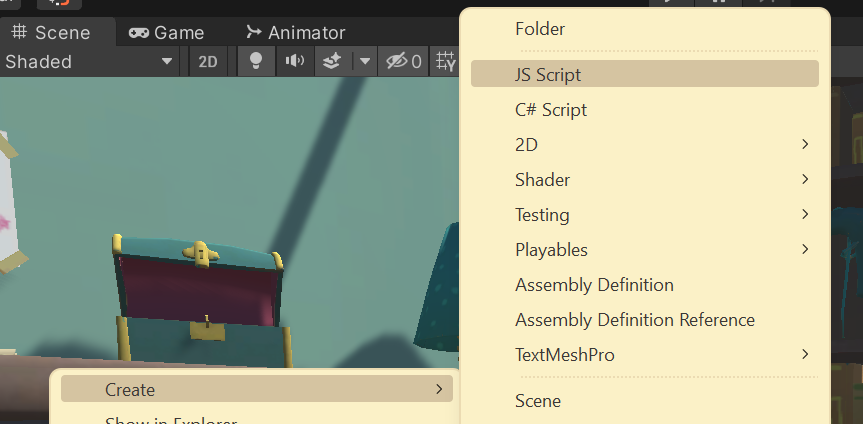
Created file:

If we open it we will see our template:
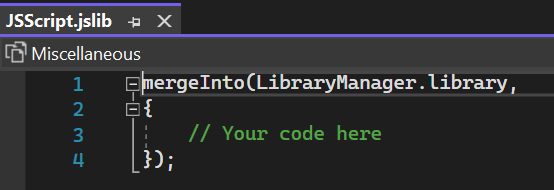
// Assets/Plugins/WebGL/JSFileUploader.jslib mergeInto(LibraryManager.library, { InitFileLoader: function (callbackObjectName, callbackMethodName) { // Strings received from C# must be decoded from UTF8 FileCallbackObjectName = UTF8ToString(callbackObjectName); FileCallbackMethodName = UTF8ToString(callbackMethodName); // Create an input to take files if there isn't one already var fileuploader = document.getElementById('fileuploader'); if (!fileuploader) { console.log('Creating fileuploader...'); fileuploader = document.createElement('input'); fileuploader.setAttribute('style', 'display:none;'); fileuploader.setAttribute('type', 'file'); fileuploader.setAttribute('id', 'fileuploader'); fileuploader.setAttribute('class', 'nonfocused'); document.getElementsByTagName('body')[0].appendChild(fileuploader); fileuploader.onchange = function (e) { var files = e.target.files; // If the file is not selected, we complete the execution and call unfocus // Note: If you need to handle the case where the file is not // selected, then you can call SendMessage and pass // null, instead ResetFileLoader() if (files.length === 0) { ResetFileLoader(); return; } console.log('ObjectName: ' + FileCallbackObjectName + ';\nMethodName: ' + FileCallbackMethodName + ';'); SendMessage(FileCallbackObjectName, FileCallbackMethodName, URL.createObjectURL(files[0])); }; } console.log('FileLoader initialized!'); }, // This function is called when the button is pressed, because browser protection doesn't skip click() call // programmatically RequestUserFile: function (extensions) { // Decoding the string from UTF 8 var str = UTF8ToString(extensions); var fileuploader = document.getElementById('fileuploader'); // If for some reason the fileuploader does not exist - set it // This can happen in Blazor.NET projects if (fileuploader === null) InitFileLoader(FileCallbackObjectName, FileCallbackMethodName); // Set the received extensions if (str !== null || str.match(/^ *$/) === null) fileuploader.setAttribute('accept', str); // Focus on input and click fileuploader.setAttribute('class', 'focused'); fileuploader.click(); }, // This function is called after the file is received. // It can be called from RequestUserFile or fileUploader.onchange // not from C#, which will be faster, but I'm using the call from C# as a mini-example // of calling a function without parameters ResetFileLoader: function () { var fileuploader = document.getElementById('fileuploader'); if (fileuploader) { // Removing input from focus fileuploader.setAttribute('class', 'nonfocused'); } }, });And let’s create a wrapper for convenient use of our js script:
// Assets/Scripts/FileUploader.cs using System; using System.Runtime.InteropServices; using UnityEngine; // Helper component to get a file public class FileUploader : MonoBehaviour { private void Start() { // We don't need to delete it on the new scene, because system is singletone DontDestroyOnLoad(gameObject); } // This method is called from JS via SendMessage void FileRequestCallback(string path) { // Sending the received link back to the FileUploaderHelper FileUploaderHelper.SetResult(path); } } public static class FileUploaderHelper { static FileUploader fileUploaderObject; static Action<string> pathCallback; static FileUploaderHelper() { string methodName = "FileRequestCallback"; // We will not use reflection, so as not to complicate things, hardcode :) string objectName = typeof(FileUploaderHelper).Name; // But not here // Create a helper object for the FileUploader system var wrapperGameObject = new GameObject(objectName, typeof(FileUploader)); fileUploaderObject = wrapperGameObject.GetComponent<FileUploader>(); // Initializing the JS part of the FileUploader system InitFileLoader(objectName, methodName); } /// <summary> /// Requests a file from the user. /// Should be called when the user clicks! /// </summary> /// <param name="callback">Will be called after the user selects a file, the Http path to the file is passed as a parameter</param> /// <param name="extensions">File extensions that can be selected, example: ".jpg, .jpeg, .png"</param> public static void RequestFile(Action<string> callback, string extensions = ".jpg, .jpeg, .png") { RequestUserFile(extensions); pathCallback = callback; } /// <summary> /// For internal use /// </summary> /// <param name="path">The path to the file</param> public static void SetResult(string path) { pathCallback.Invoke(path); Dispose(); } private static void Dispose() { ResetFileLoader(); pathCallback = null; } // Below we declare external functions from our .jslib file [DllImport("__Internal")] private static extern void InitFileLoader(string objectName, string methodName); [DllImport("__Internal")] private static extern void RequestUserFile(string extensions); [DllImport("__Internal")] private static extern void ResetFileLoader(); }And for tests, we will create such a script that will receive a picture and set it as a user avatar:
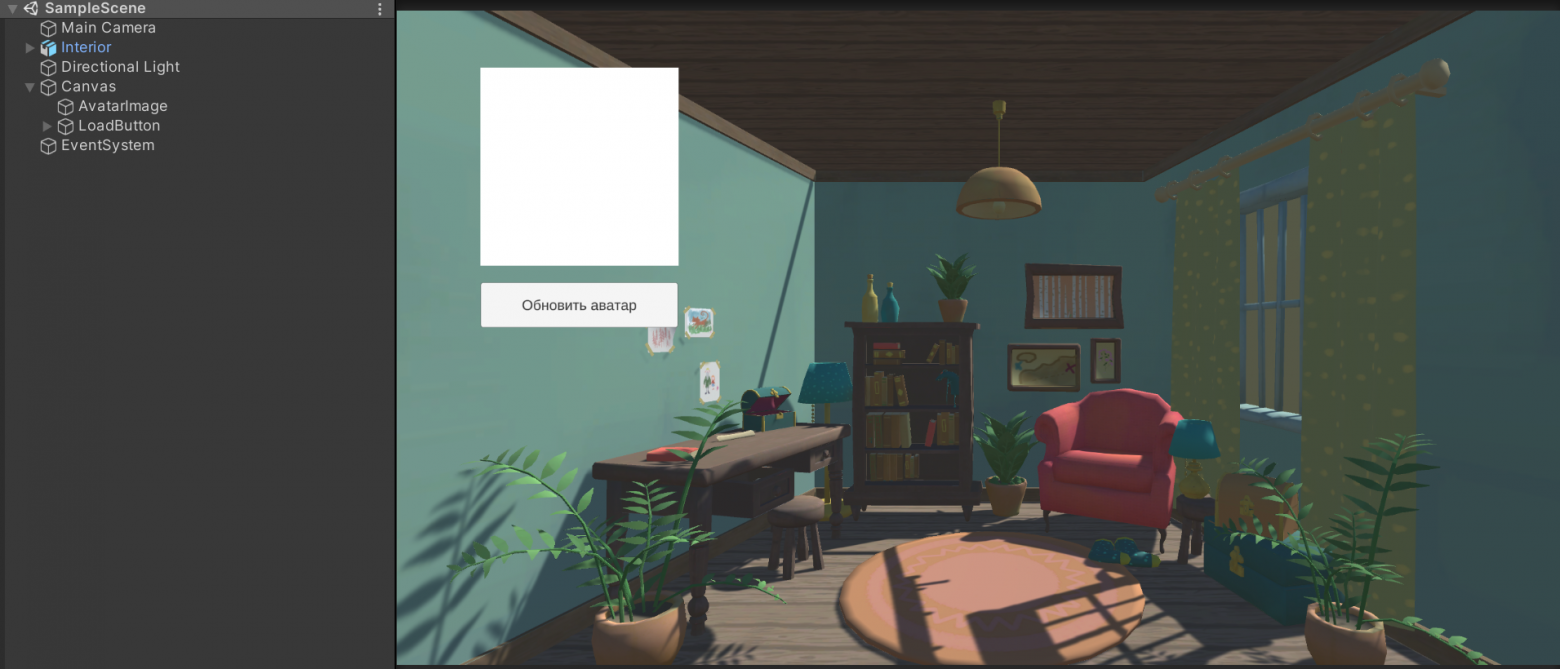
// Assets/Scripts/AvatarController.cs using System.Collections; using UnityEngine; using UnityEngine.Networking; using UnityEngine.UI; public class AvatarController : MonoBehaviour { // Link to the UI picture of the avatar in Canvas public Image avatarImage; // This method is called by the button (Button component) public void UpdateAvatar() { // Requesting a file from the user FileUploaderHelper.RequestFile((path) => { // If the path is empty, ignore it. if (string.IsNullOrWhiteSpace(path)) return; // Run a coroutine to load an image StartCoroutine(UploadImage(path)); }); } // Coroutine for image upload IEnumerator UploadImage(string path) { // This is where the texture will be stored. Texture2D texture; // using to automatically call Dispose, create a request along the path to the file using (UnityWebRequest imageWeb = new UnityWebRequest(path, UnityWebRequest.kHttpVerbGET)) { // We create a "downloader" for textures and pass it to the request imageWeb.downloadHandler = new DownloadHandlerTexture(); // We send a request, execution will continue after the entire file have been downloaded yield return imageWeb.SendWebRequest(); // Getting the texture from the "downloader" texture = ((DownloadHandlerTexture)imageWeb.downloadHandler).texture; } // Create a sprite from a texture and pass it to the avatar image on the UI avatarImage.sprite = Sprite.Create( texture, new Rect(0.0f, 0.0f, texture.width, texture.height), new Vector2(0.5f, 0.5f)); } }And also create a small scene:
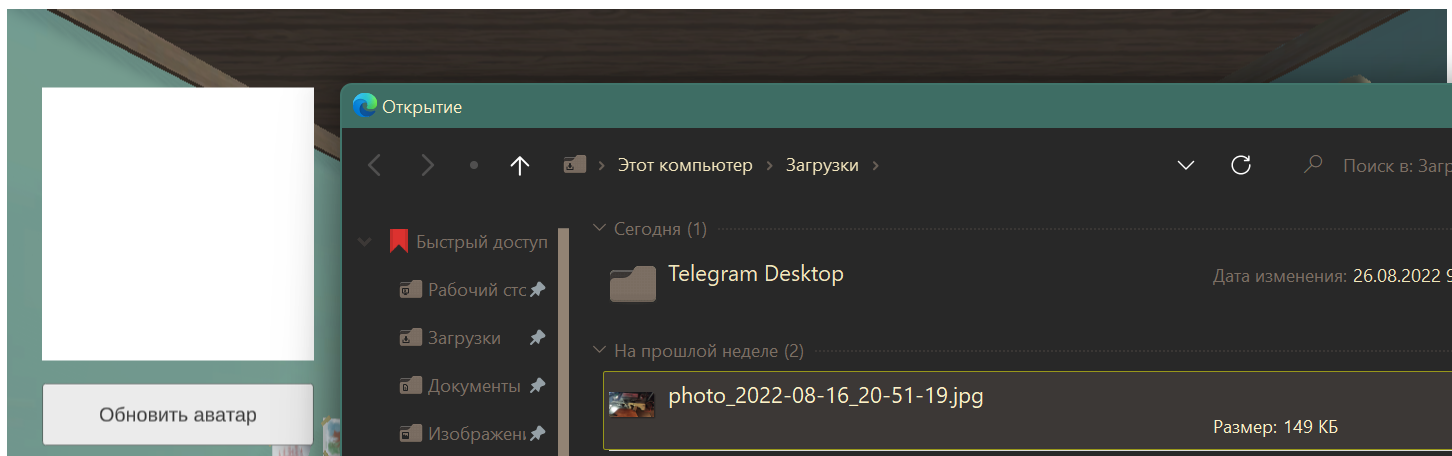
Results of use on different browsers
Edge

Chrome

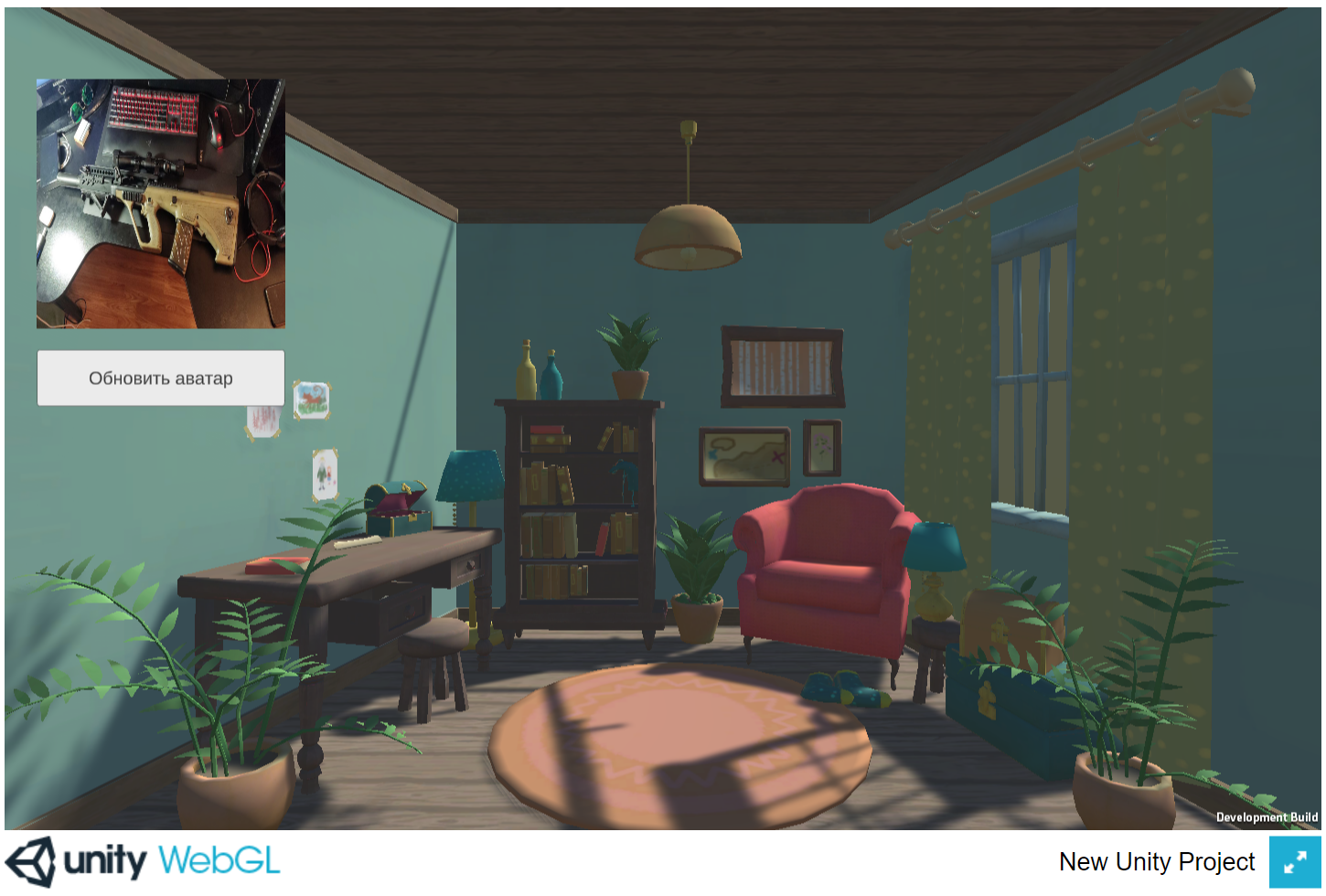
Firefox
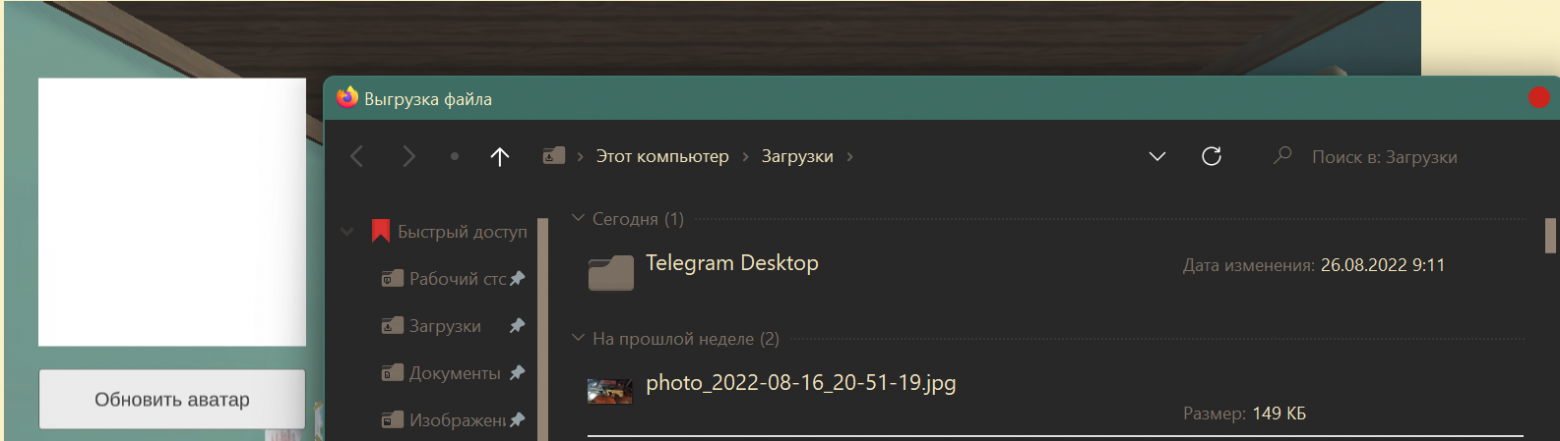
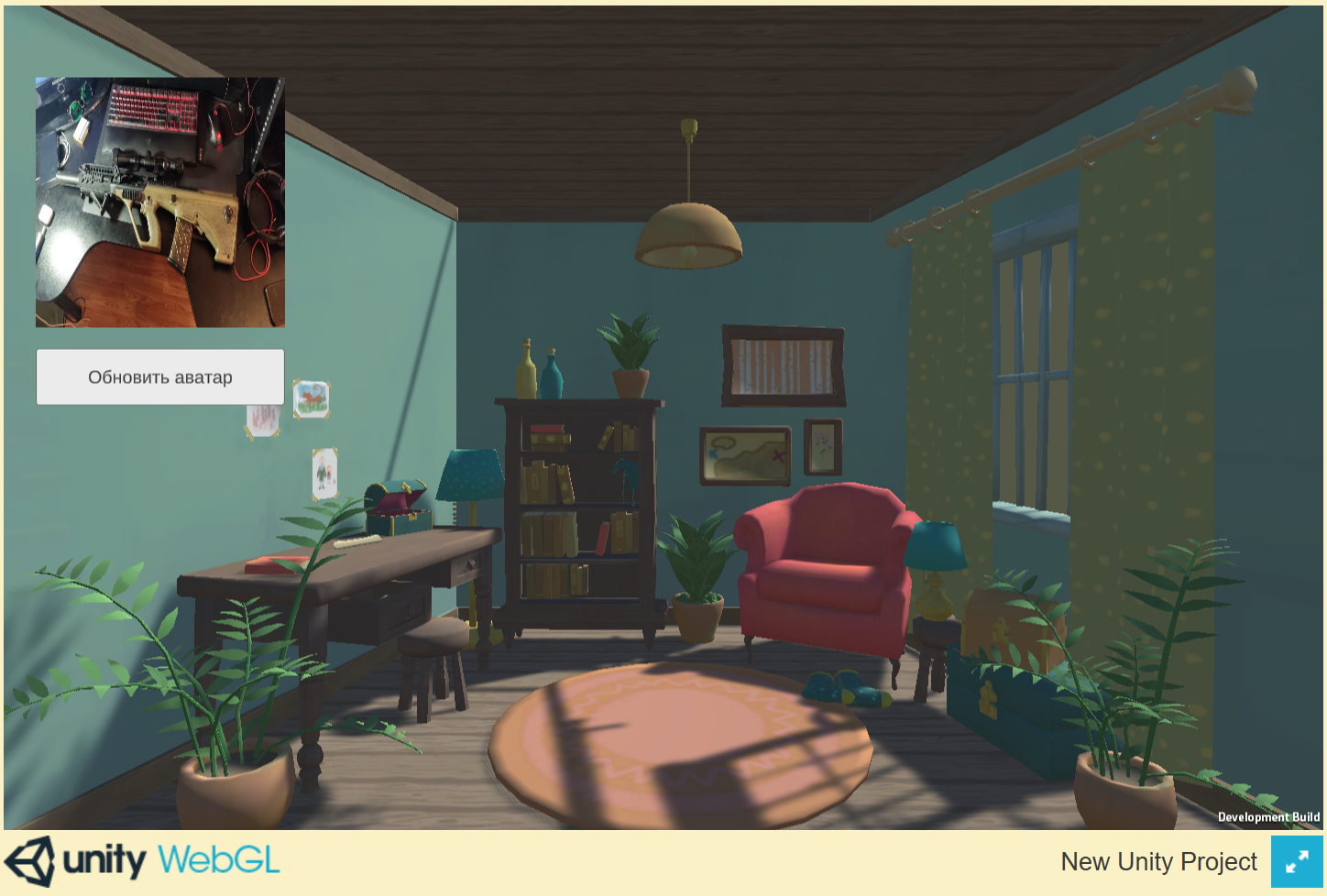
As a result, we have a system for querying the user’s files, which returns the path to the selected file in 1 function call:
Action<string> callback = (str) => { /* Your file handler code here*/ }; FileUploaderHelper.RequestFile(callback); // Or so, if we need not pictures, but other, special files: FileUploaderHelper.RequestFile(callback, ".txt, .docx, .csv");Thank you all for your attention, I hope my articles help you in your projects! I will be glad to additions and criticism.
Code on GitHub:
Translated for TechNation GlobalTalent Visa.
ссылка на оригинал статьи https://habr.com/ru/articles/684936/
Добавить комментарий